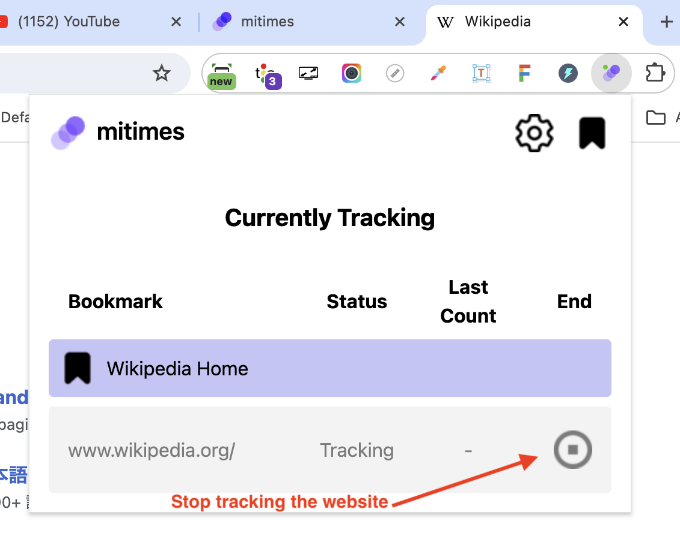
The Web Tracking feature allows you to track time spent on chosen websites and capture this activity in your Mitimes Activity Feed. Web Tracking is supported for Google Chrome and Microsoft Edge.
Install the Mitimes Browser Extension
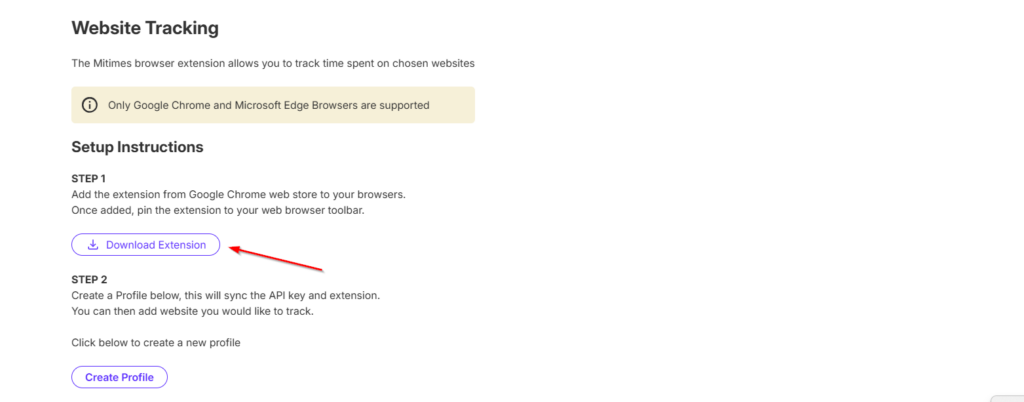
- In Mitimes, go to the menu in the top right > My Profile > Website Tracking.
- Click Download Extension. This will take you the Mitimes Extension in the Chrome Web Store.
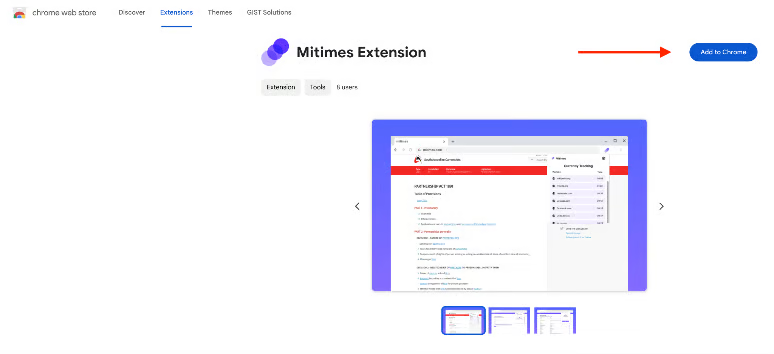
Click Add to Chrome and confirm to add the Mitimes Extension to your browser.
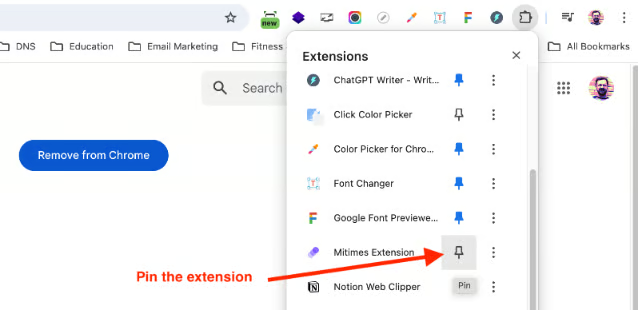
Once the extension has been added, you will see a notification confirming this. We recommend pinning the Mitimes extension for convenience.
Configure the Extension
The next step is to create your profile. Go back to My Profile > Website Tracking in Mitimes and click Create Profile.
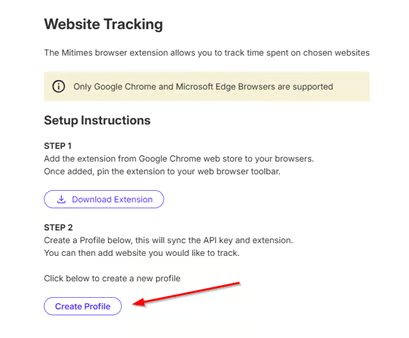
This will automatically generate your unique Extension Key and sync it to your newly added Mitimes extension.
Next, ensure the Country is configured correctly for the extension. To do this, click on the Mitimes Chrome extension and go to Settings:
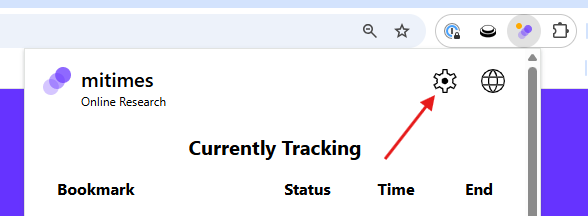
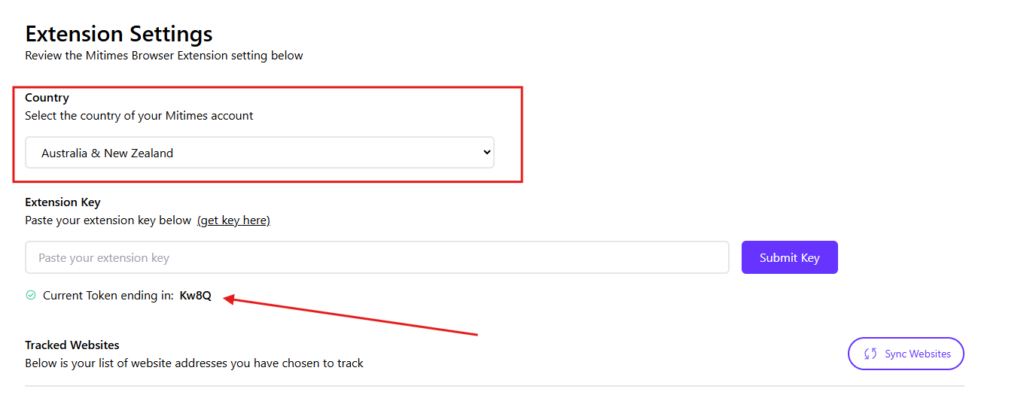
From the Settings page, select your Country. You’ll also see that your Extension Key has automatically synced to the extension.
Next, add the websites you’d like to track. To do this, navigate back to the Website Tracking tab in Mitimes and click New Website.
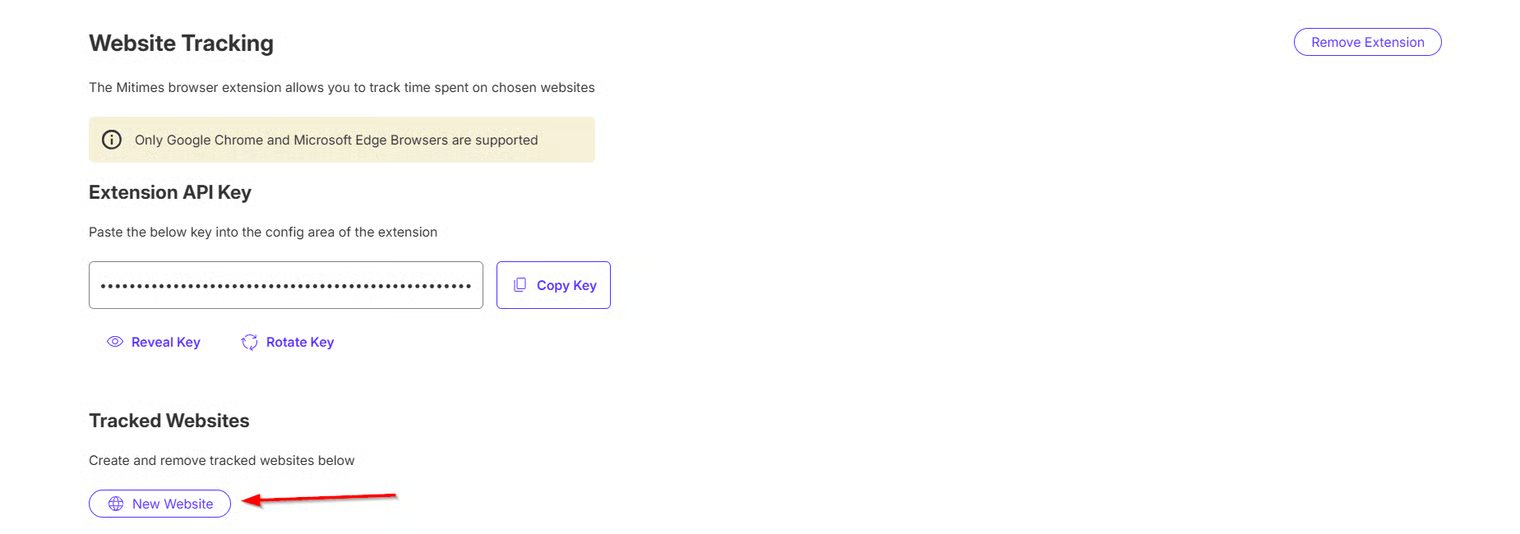
Enter the name of the site and the URL then Submit. Mitimes will track all subpages of the tracked URL, so we recommend adding in the base URL if you’d like to track all activity on the chosen site.
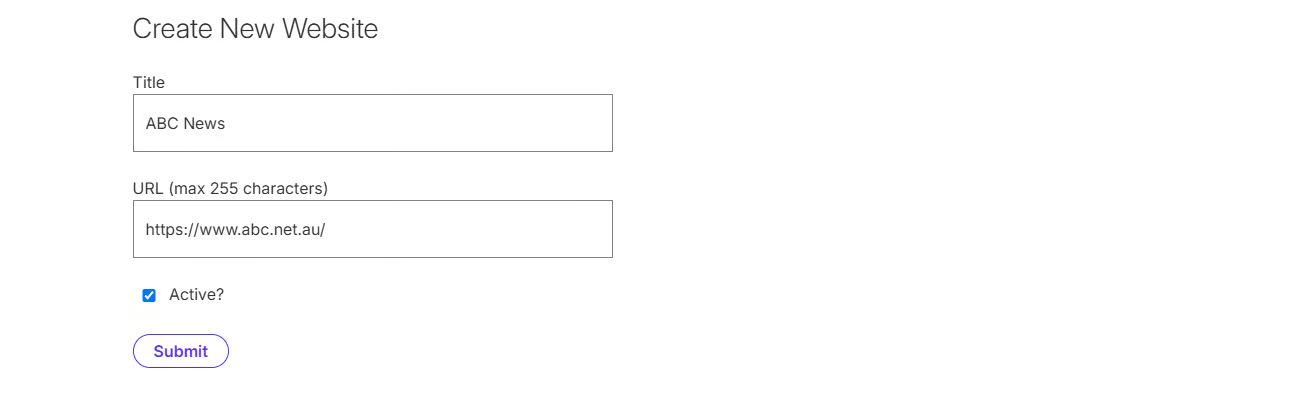
Repeat step 2 for any other websites you would like to track.
Token Refresh
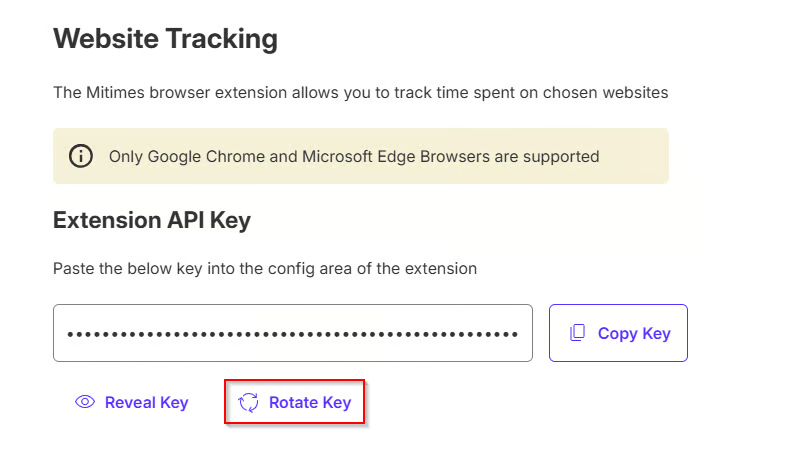
Your Extension Key will expire every 180 days and will need to be rotated. If you notice that tracking has stopped working, this is likely the reason.
Mitimes will notify you that your Extension Key is about to expire or has expired:
Expiring soon

Expired

To rotate your Extension Key:
- In Mitimes, either click the ‘Extension Profile’ button in the notification, or go to My Profile > Website Tracking.
- Rotate the API key. This will automatically update your extension.
How it works
Simply open any of the tracked websites in your browser. The extension will turn green to indicate that it’s currently tracking.
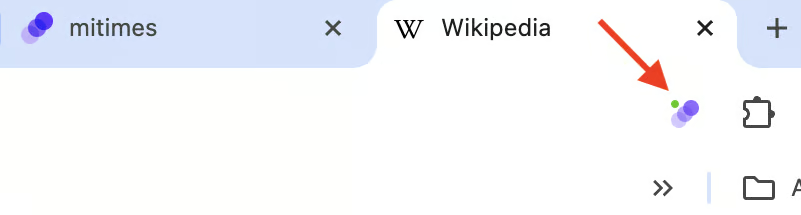
Tracking will pause if you navigate away from the tab and the extension will turn orange.
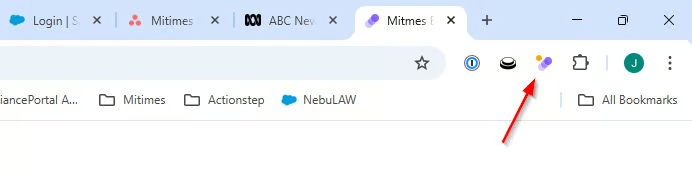
Back in Mitimes, you’ll see the activity for the site being tracked in a group in your activity feed, with duration Pending. Each subpage of the tracked site will have a separate activity in the group.
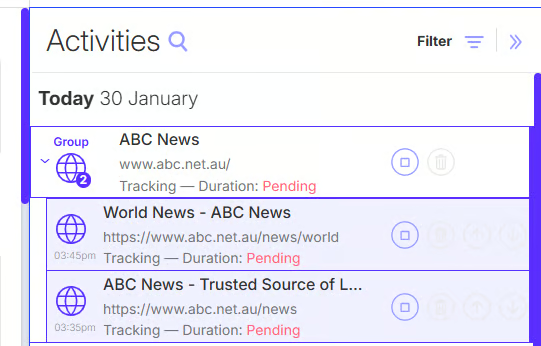
When the tracked tab is closed, tracking will stop and the duration in Mitimes will be updated automatically. You can also manually stop tracking by using the stop button shown above, or by opening the extension and stopping it there.