
Overview
Mitimes integrates with NetDocuments or iManage Cloud to capture your document activity, and allow you to file Emails or save File Notes against matters in your DMS.
Mitimes will capture document Check-out and Reading activity.
Check-out/Check-in (Drafting)
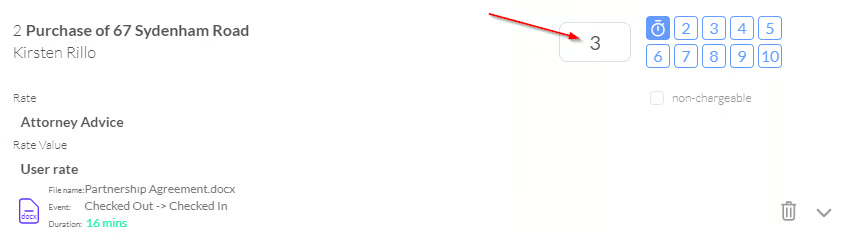
When you check out a document in your DMS, it will come into your Mitimes Activity feed as a Drafting activity with duration pending:

When the document is checked back in, the duration for the activity will be updated to reflect how long the document was checked out:

When the activity is charged, the units will be automatically calculated based on the duration. This can still be updated manually if required.
Open/Review (Reading)
When you open or review a document in your DMS, it will come into your Mitimes activity feed as a Reading activity:

For non-email documents, Mitimes will pre-fill the description field with the name of the document.
For email documents, the description is pre-filled with the email subject:

Matter Suggestion
Mitimes will pre-select the matter for a document related time entry if the document is attached to a matter in your DMS:

Email Filing
Mitimes can file emails against a Matter in your DMS.
Emails will only be filed once the matter is selected and verified on the time entry
This can be configured to happen automatically by a Mitimes Admin for all emails
With automatic filing switched on, you will see that an email is in the process of being filed after selecting the matter
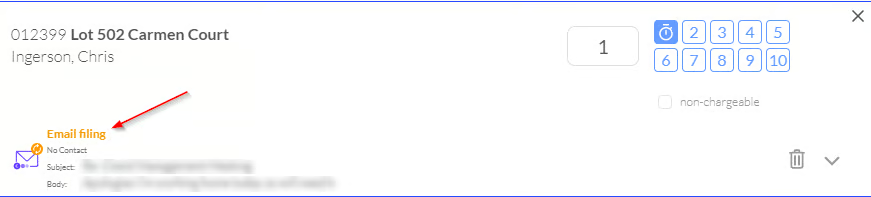
With automatic filing enabled, after selecting a matter, the email will be filed after a configurable delay (default 5 minutes). This gives you time to correct the matter before the email is filed if the wrong one was selected.
Mitimes will not file a duplicate email if the email has already been filed to your DMS via your other systems.
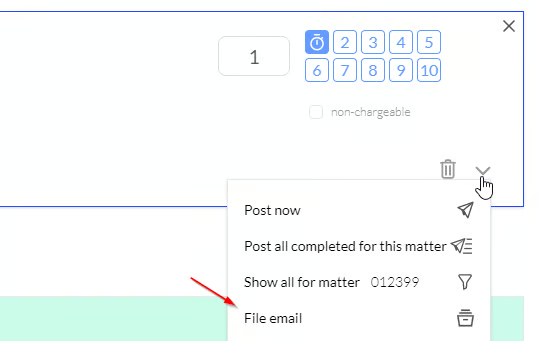
If automatic email filing is switched off for your organisation, you can manually file emails to your DMS:
File Notes
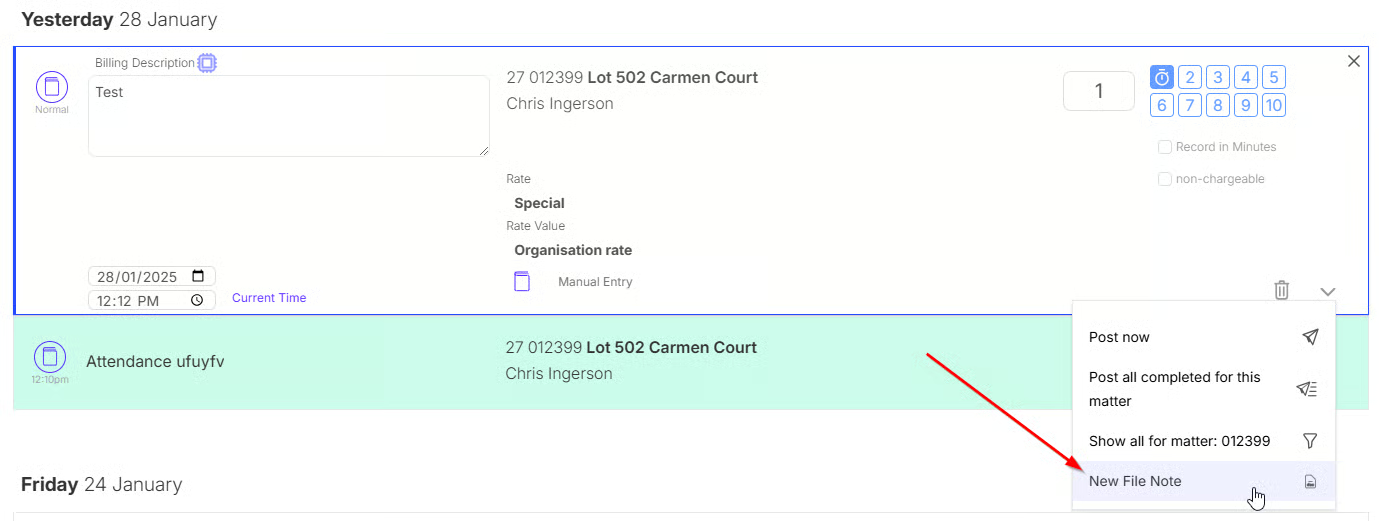
To create a file note from a fee, click New File Note.
Fill in the title and add your note content, then Save and File.
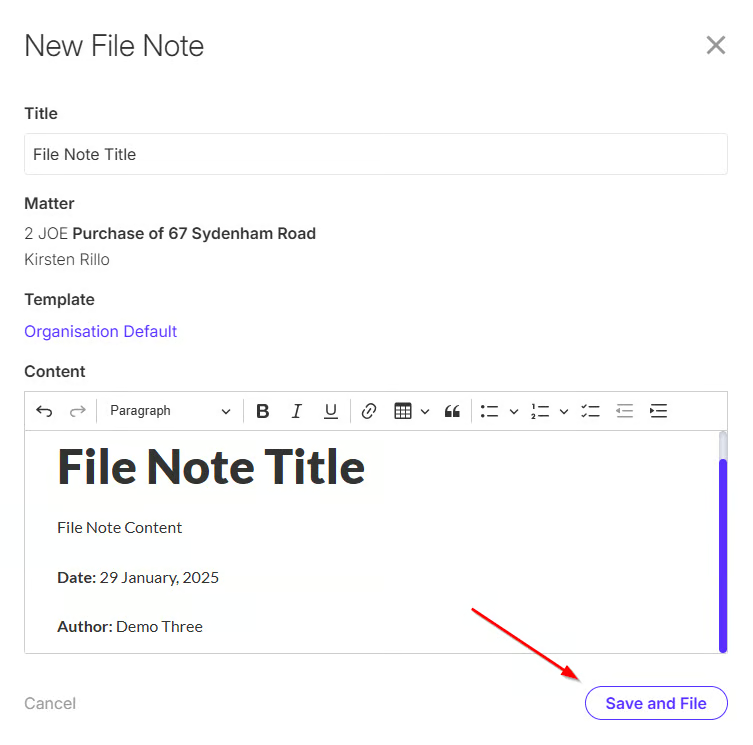
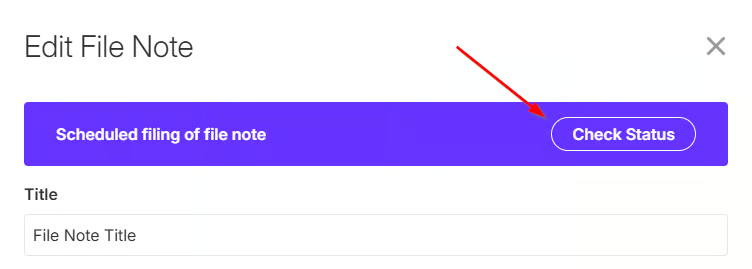
The file note will attempt to file shortly. To check the status or to view the file note in your DMS, click Check Status.
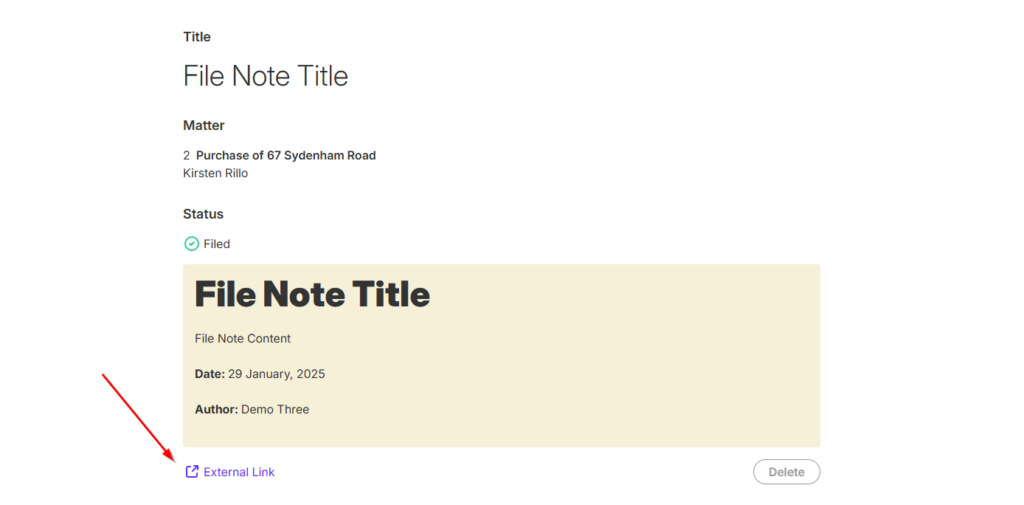
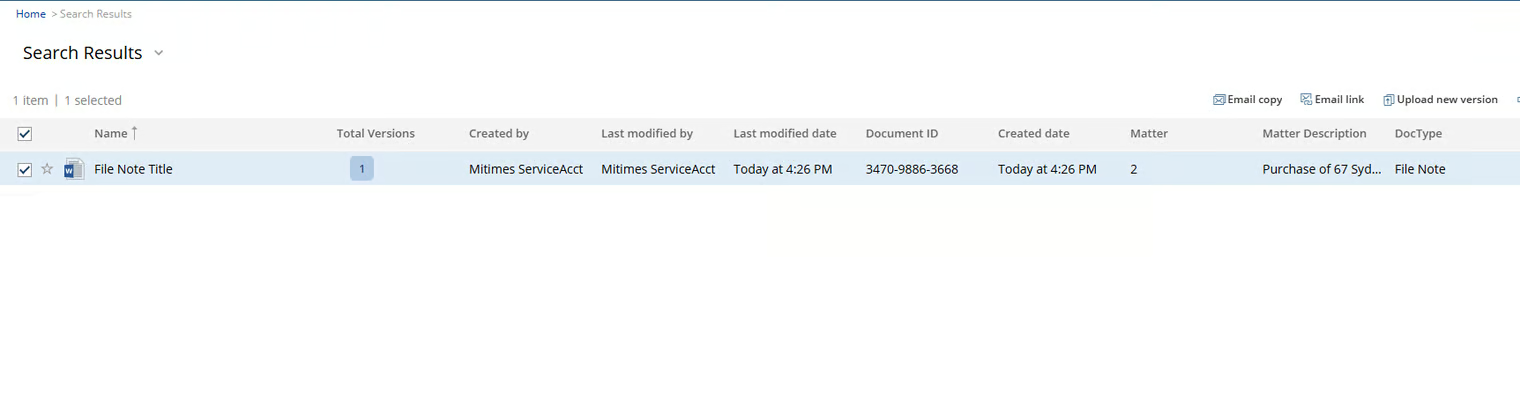
Click External Link to see the file note in your DMS.
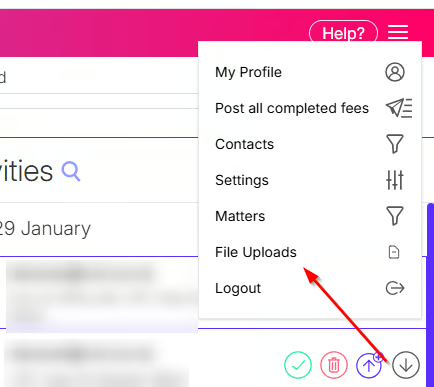
To view your previous file notes in Mitimes, go to the menu in the top right > File Uploads
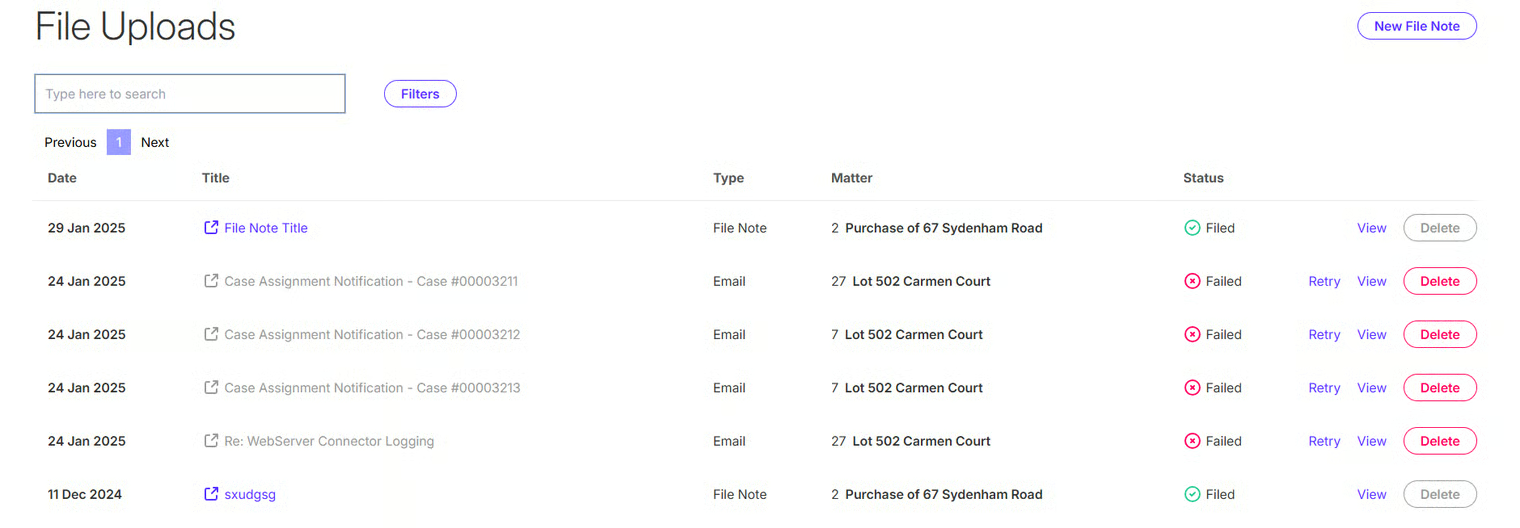
From here you can:
- View your file notes and their filing status
- Retry or delete any failed file notes
- Create a new file note