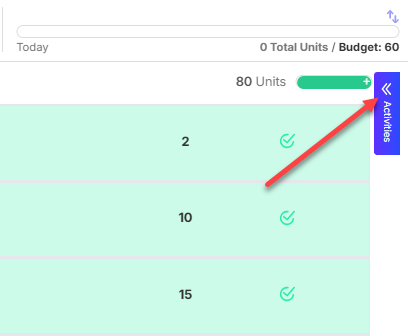
Everything you need to know to get the most out of your Activity Feed
Overview
The Activity Feed in Mitimes automatically captures billable activity, like emails and meetings, from your other connected systems, allowing you to automate your time recording and ensure time isn’t missed.
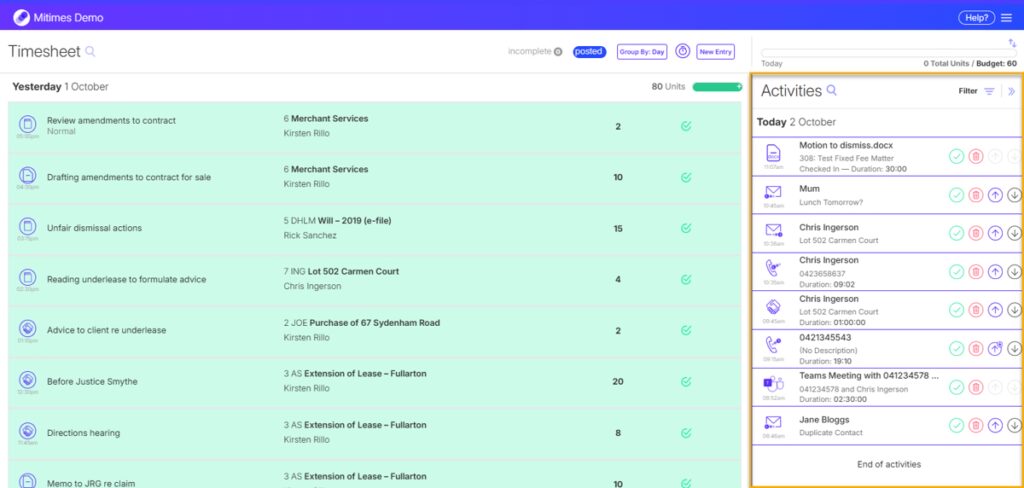
Your Activity Feed is located on the right hand side of your Timesheet.
Activity Buttons
Activity buttons are used to manage and process your activities.
 | Charge an individual activity without upgrading or downgrading the contact. |
 | Delete an individual activity without upgrading or downgrading the contact. |
 | Charge & Upgrade Charge all current activities for the contact, and upgrade the contact. Future activities for an upgraded contact will automatically go to your Timesheet as a time entry, with their most recently selected matter suggested. Upgrade contacts you bill most activity for to automate your time recording and save time. |
 | Delete & Downgrade Delete all current activities for the contact, and downgrade the contact. Future activities for a downgraded contact will be automatically deleted. Downgrade contacts you never bill activity for to prevent clutter in your activity feed. |
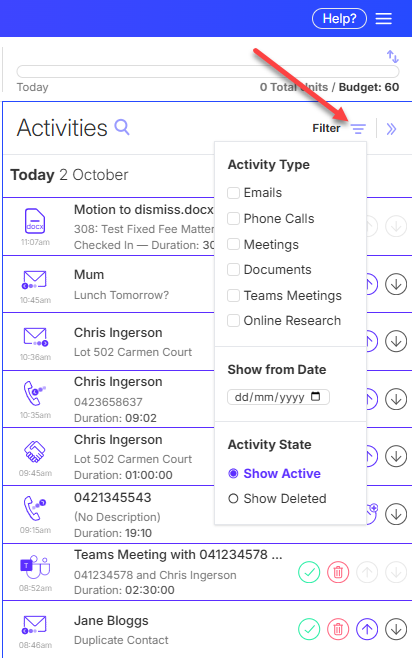
Activity Feed Filters
Use the activity feed filters to easily find the activities you’re looking for. You can filter by Activity Type, Date, or Status.
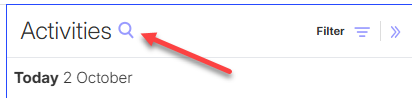
Activity Feed Search
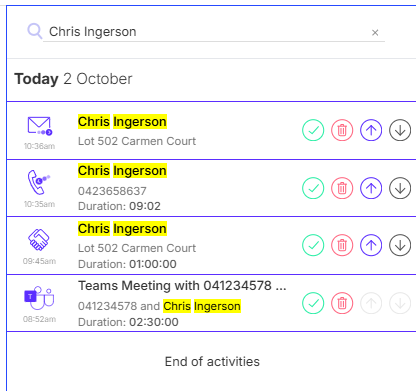
To search for particular activities, click the magnifying glass at the top of your Activity Feed.
Enter your search term and the results will be returned. You can search by contact name, email subject, phone number, matter number etc.
Retrieving Deleted Activities & Downgraded Contacts
To retrieve deleted activities or downgraded contacts, open the activity feed filters and click Show Deleted.
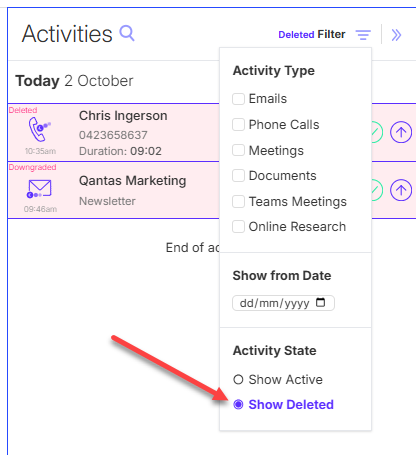
From here, using the activity buttons, you can either charge an individual deleted activity, or charge and upgrade the contact.
Hiding the Activity Feed
You can hide your Activity Feed by clicking the collapse arrow at the top right.
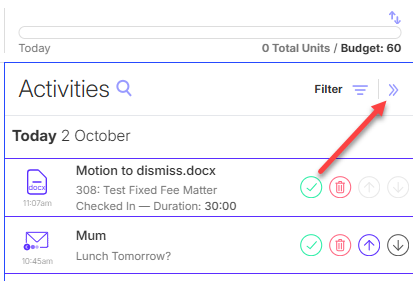
To show your Activity Feed again, click the expand arrow.