Overview
The Delegate User feature allows you to add another user as your Delegate, allowing them to access and manage your timesheet on your behalf.
Adding a Delegate
Note: Users must have the Delegate User Role assigned to them by an Admin before you can add them as your Delegate. If the user you want to assign as a Delegate is not available to select, please contact your Mitimes Administrator.
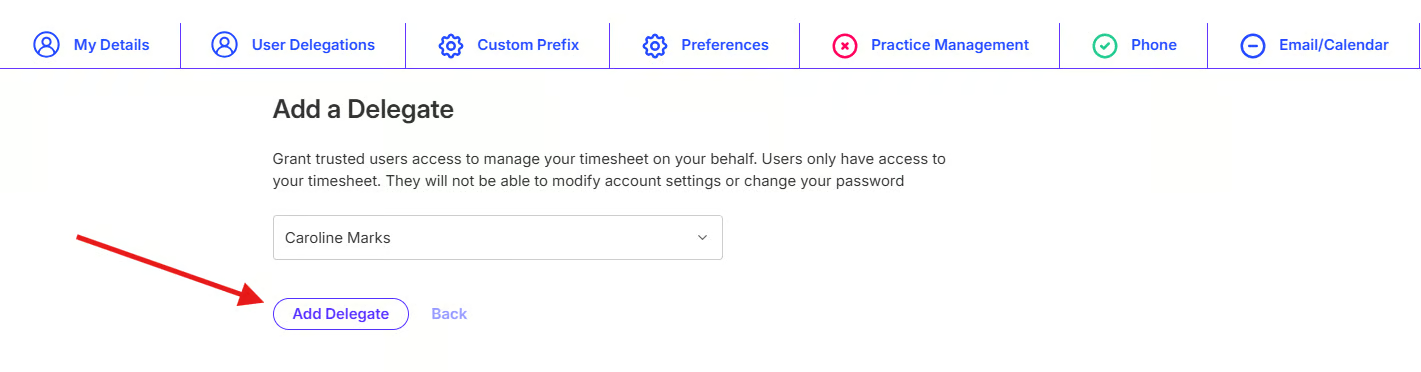
In Mitimes, navigate to My Profile > User Delegations > Add a Delegate

Select the User you want to add, then click Add Delegate
Your Delegate will then receive an email with instructions to accept the invitation.
Once your Delegate has accepted the invitation, they will be able to access your timesheet.
Delegate Abilities
Delegates can:
- Create, update, and post time entries
- Manage Contacts
- Manage the Activity Feed
Delegates cannot:
- Access My Profile
- Update Preferences
- Update or connect to Integrations
- Access Admin Settings (if the Delegator is an Admin)
Managing Delegates
You can see and update the status of your Delegates from My Profile > User Delegations
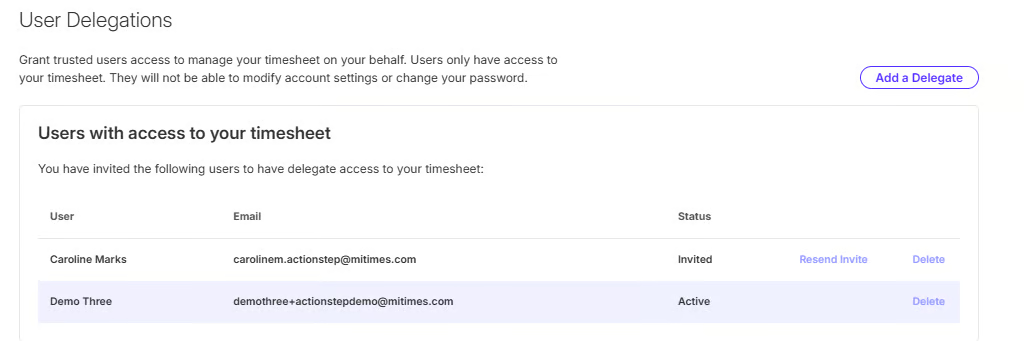
Deleting a Delegate will remove their ability to access your timesheet.
Accessing timesheets as a Delegate
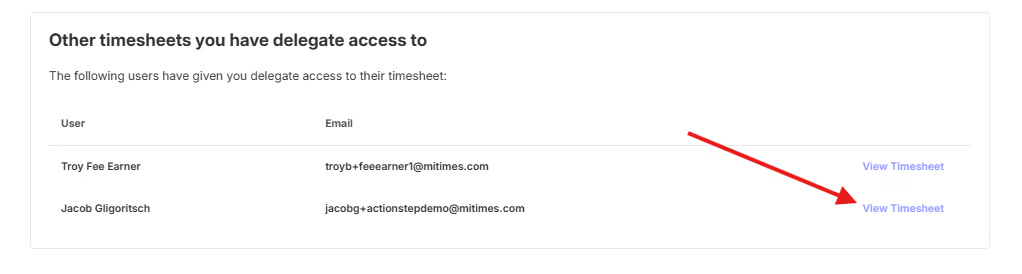
You will receive an email advising you when a user invites you to be their Delegate. To accept the invitation, in Mitimes go to My Profile > User Delegations > Accept Invite
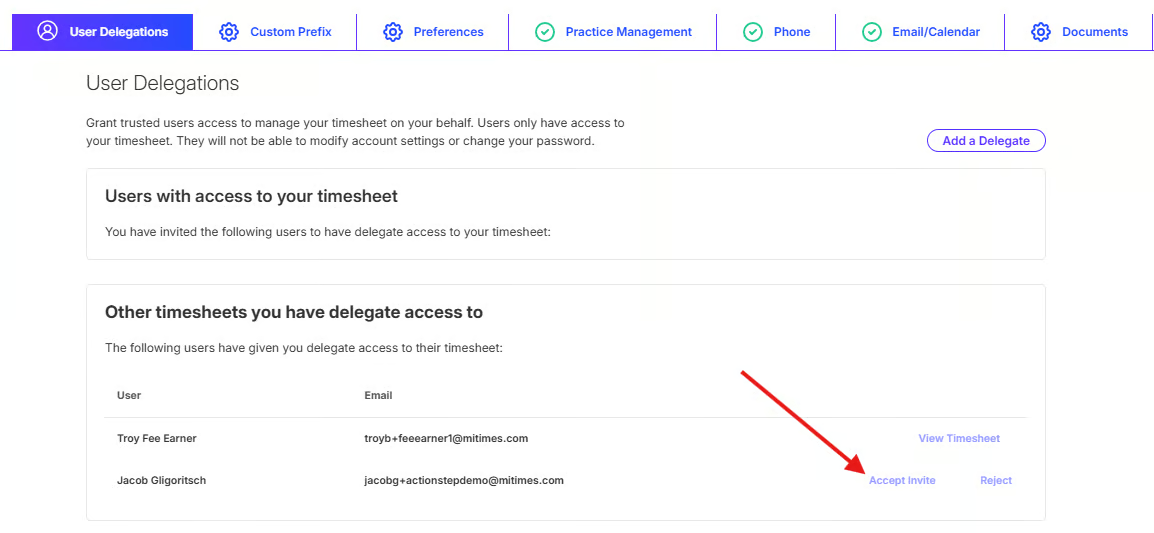
After accepting the invitation, you can access your Delegator’s timesheet in Mitimes from My Profile > User Delegations > View Timesheet