Overview
The My Profile area allows you to configure your preferences, view and update your details, and manage your connections.
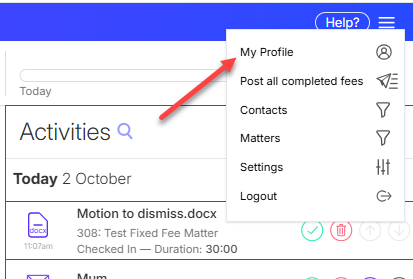
My Profile can be accessed from the menu in the top right > My Profile.
Preferences
Set your personal preferences from the Preferences tab in My Profile.
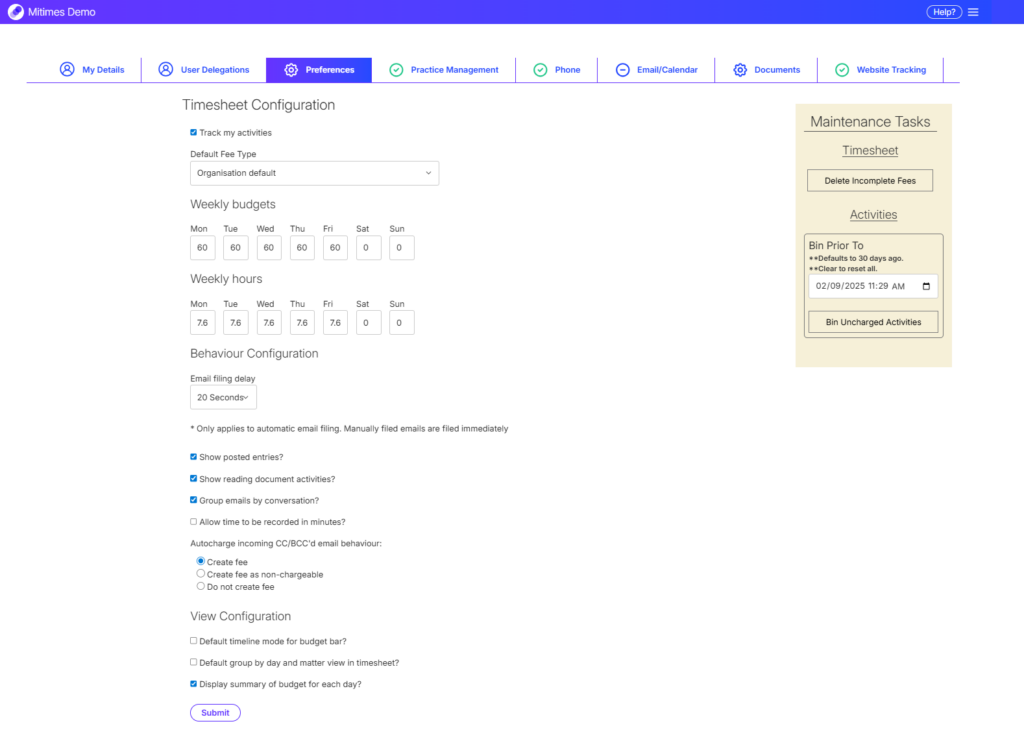
From here, you can:
- Enable or disable Activity Tracking
- Set your preferred default fee type for manual time entries
- Set your weekly budgets and hours
- Change the automatic email filing delay
- Select whether to show Posted entries in your Timesheet
- Select whether to group emails by conversation
- Select whether to capture Reading document activities in your Activity Feed
- Allow time to be recorded in minutes instead of units
- Select your preferred behaviour for incoming CC/BCC’d emails
- Set your preferred Timesheet view defaults
- Bulk delete activities or incomplete fees
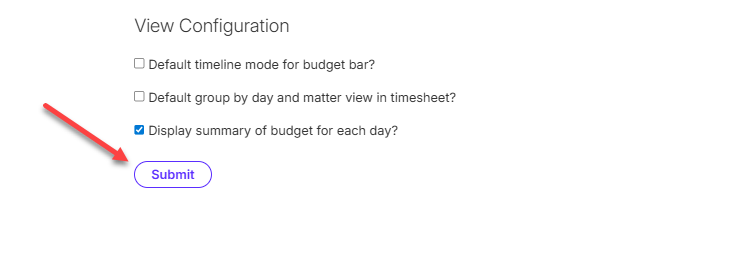
To change your preferences, simply make your selections, then click Submit to save them.
Bulk deleting Activities or Time Entries
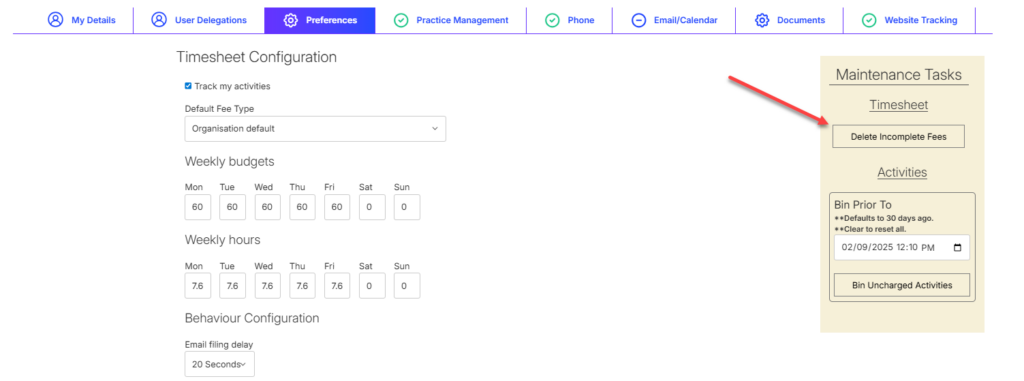
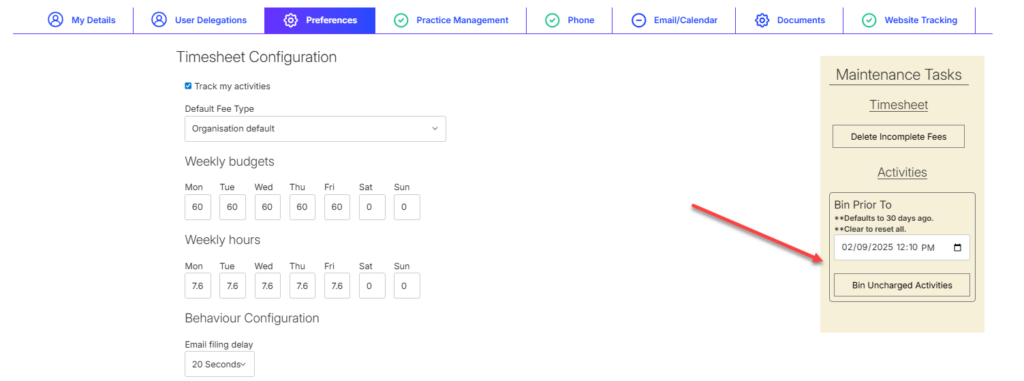
You can delete activities or incomplete time entries in bulk from the Preferences tab in My Profile.
To delete all incomplete time entries, click Delete Incomplete Fees.
To delete all activities prior to a particular date, enter the date and click Bin Uncharged Activities.
Updating your Details
To view or update your details, navigate to the My Details tab in My Profile.
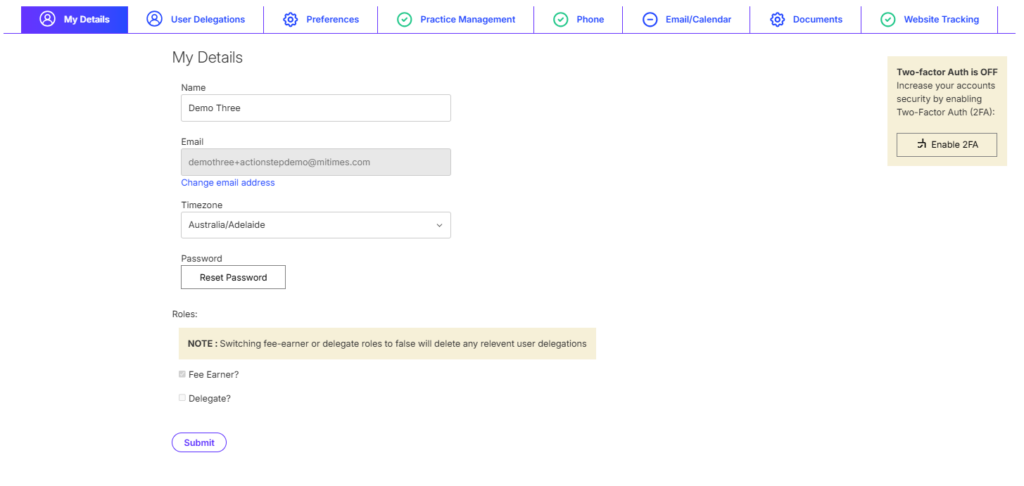
From here, you can:
- Update your name
- Change your email address
- Set your timezone
- Reset your password
- Enable or disable Two-factor Authentication (2FA)
Two-factor Authentication
Two-factor authentication (2FA) adds an extra layer of security to your account by requiring a verification code when logging into Mitimes.
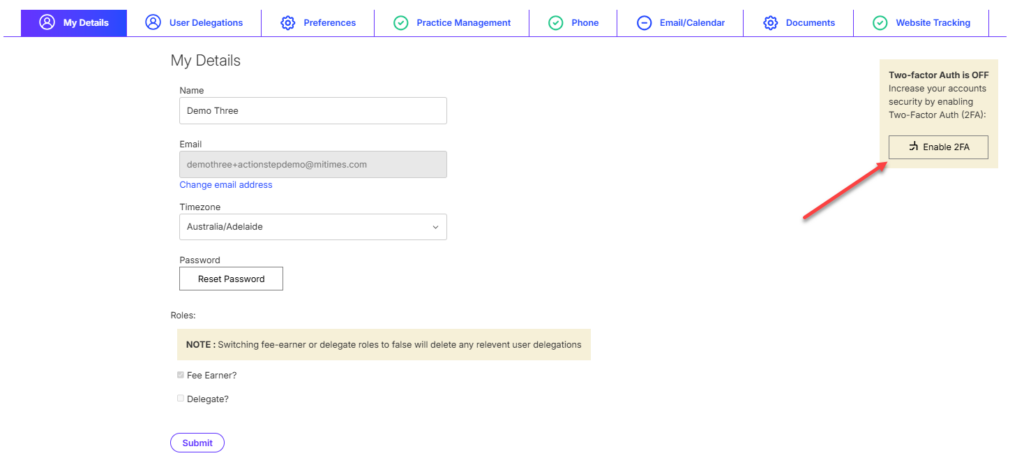
To enable 2FA, head to the My Details tab in My Profile and click Enable 2FA.
Using your authenticator app, scan the QR code or enter the manual code.
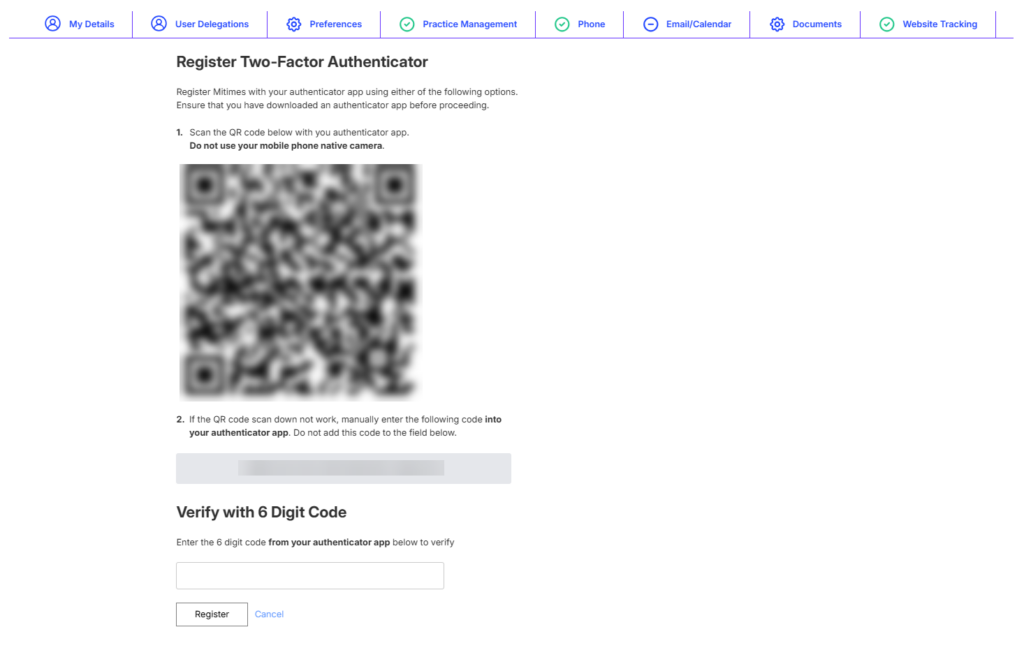
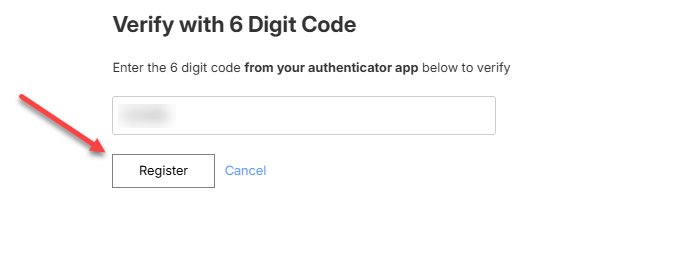
After scanning the QR Code, enter the 6 digit verification code from your authenticator app and click Register to finish enabling 2FA.
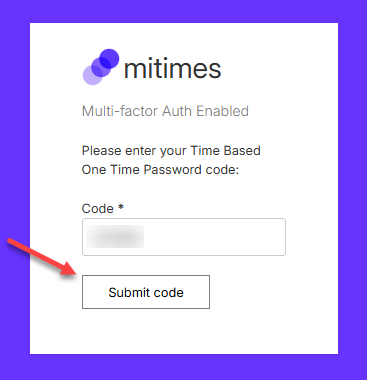
With 2FA enabled, you will be prompted to enter the verification code from your authenticator app when logging into Mitimes.
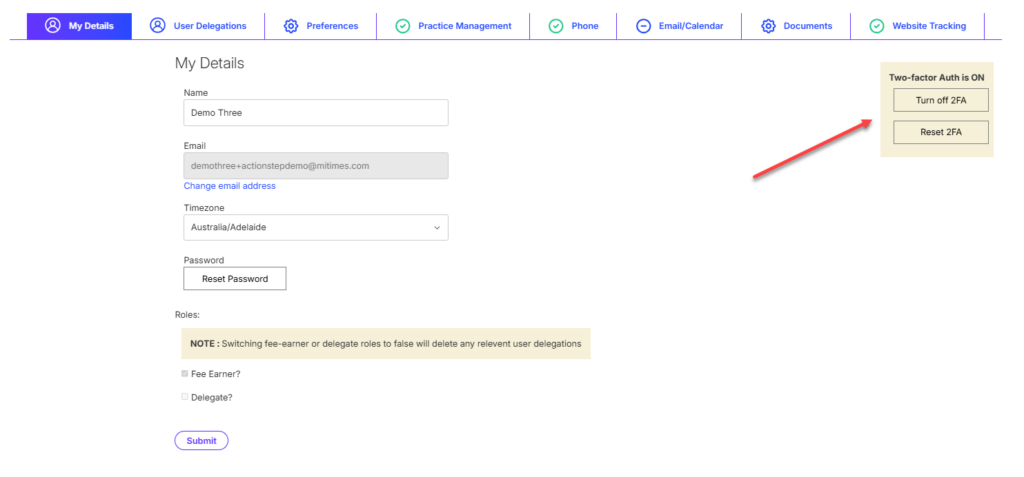
You can disable or reset 2FA from the My Details tab in My Profile.
Spell Check
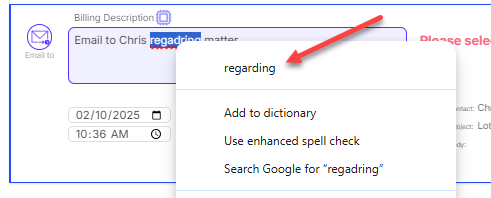
Spell check in Mitimes is managed via your browser. Please refer to your browser’s instructions for enabling Spell Check.
With your browser’s Spell Check enabled, words spelled incorrectly in Mitimes will be highlighted in red.
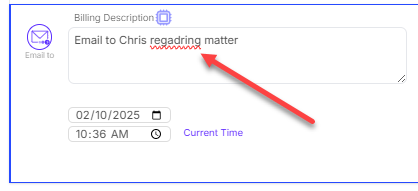
Right click on the word to correct the spelling.