
The RingCentral integration allows you to capture your RingCentral calls as activities in Mitimes
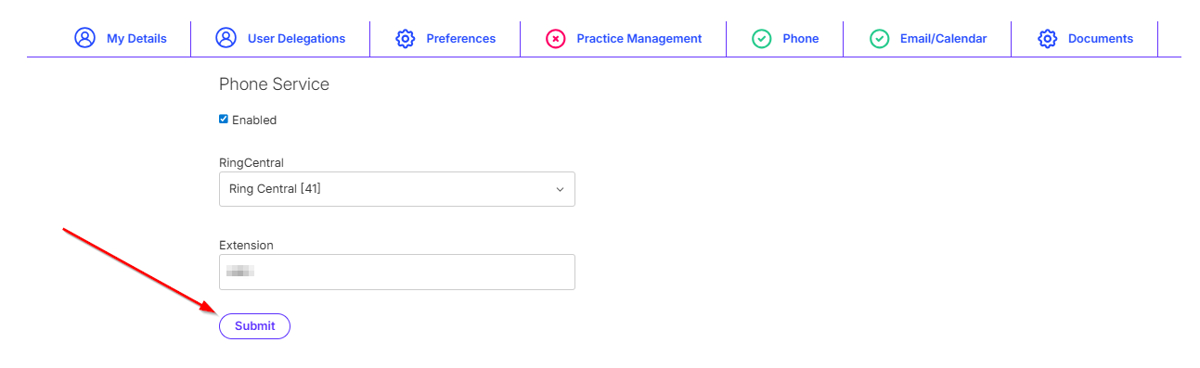
To connect your Mitimes account to RingCentral, navigate to the menu in the top right > My Profile > Phone > Add Service.

Select the RingCentral connector from the RingCentral drop-down, enter your extension, then Submit.
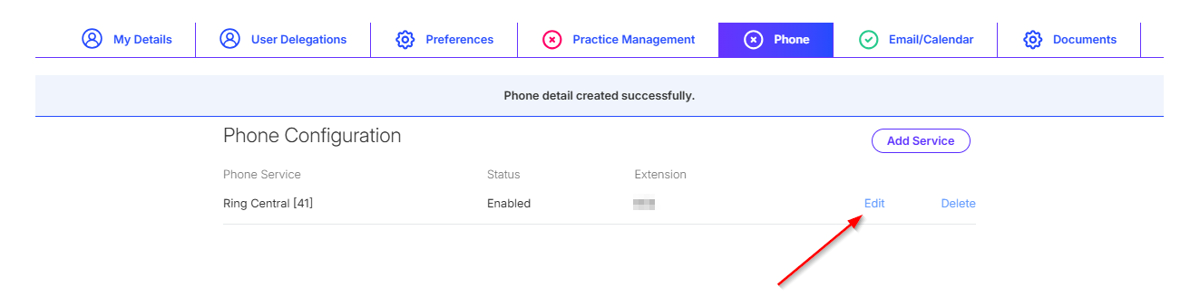
The next step is to connect to RingCentral. To do this, click Edit on the Phone Service.
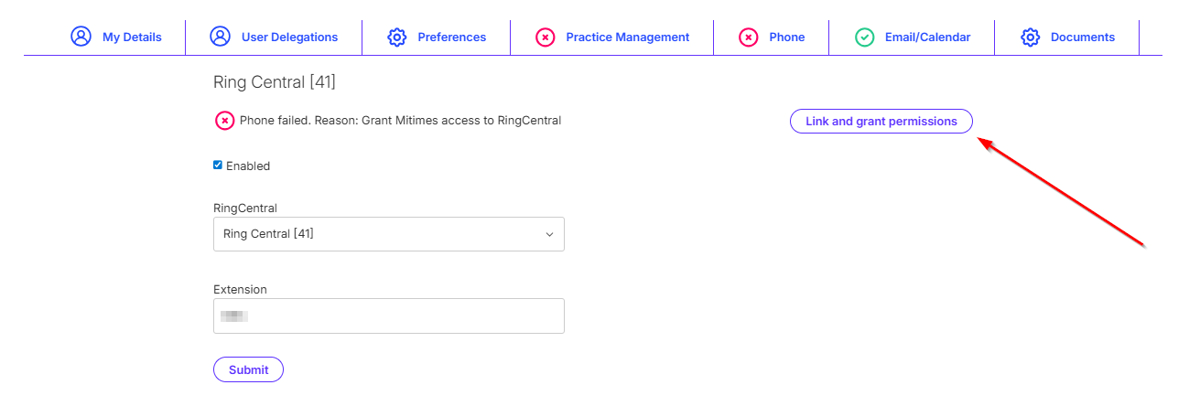
Next, click Link & grant permissions.
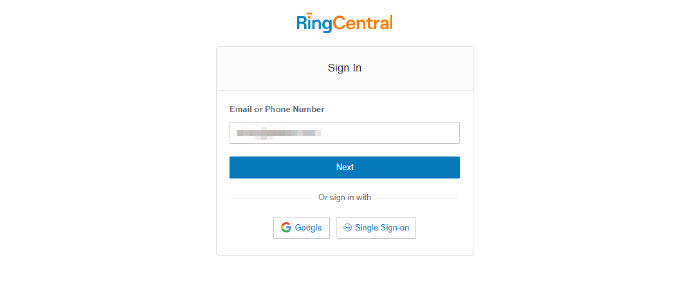
You will then be directed to RingCentral to authenticate. Follow the prompts to log in.
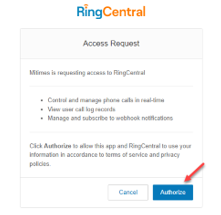
After logging in, you will be prompted to authorise access. Click Authorise.
After authorising, you’re all done and will be redirected back to your Mitimes timesheet.